
Add team members and review access
Open Company → Team & Roles. The Team tab lists names, email addresses, usernames, roles, and status. Only an administrator can add people or change roles.
Add a team member
Section titled “Add a team member”- Choose New to open Add User.
- Enter Email, First Name, and Last Name. The email becomes the sign-in address and cannot be changed here afterward.
- Add Title and Location if needed. Member ID defaults to the email name and must be unique.
- Select one Initial Role. Review Roles & Access on the Team page to choose the role appropriate to the person’s work.
- Review Email an invitation to set their password, then choose Create User when the identity and access are correct.
- Confirm the member in the roster and follow the displayed invitation instructions. Have the member complete their own password setup.
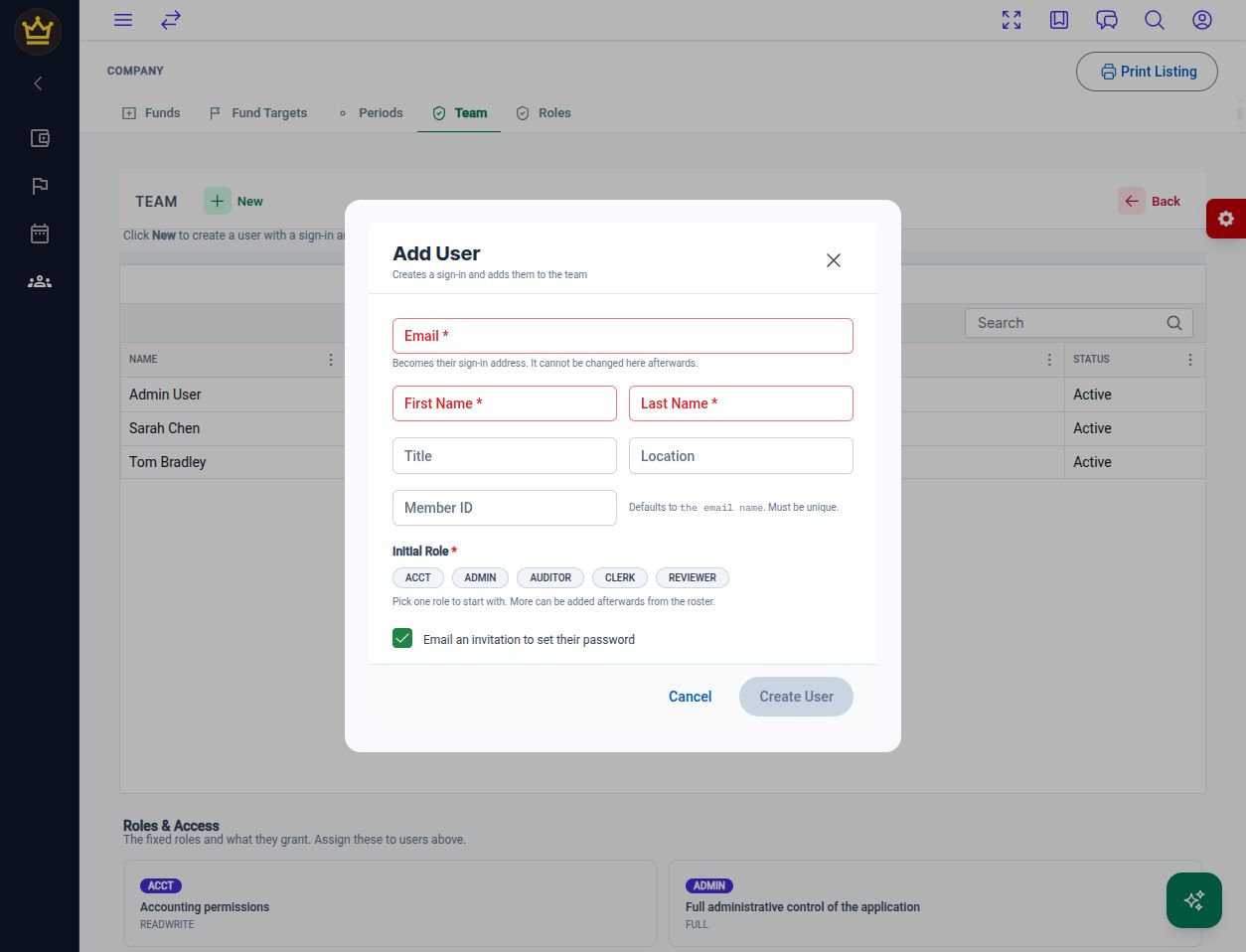
Add User before entering a new member’s details.
Review or change roles
Section titled “Review or change roles”Select the member’s row to open their details. Confirm the email address so you are editing the intended person.
Check the updated role list after the action completes. Roles & Access descriptions are a starting point; task-specific restrictions and separation-of-duties rules can still apply.
When someone leaves
Section titled “When someone leaves”Review access as part of the handover. Disabling a member signs them out and stops their roles from taking effect while retaining the grants. Enabling them later restores those grants, so review the roles before restoring access.
Use Audit Trail to look for recorded administration events. For the accounting handover, see audit preparation.
v1.1.5 (8e20c95)